Watch Umbodi work, one feature at a time.
Six short walkthroughs of the live app. How do I review and approve fixes in Umbodi? You narrow the list until only the decision you want is left. How does Umbodi show whether a change worked? It holds back one fix in ten as a control group and compares the two arms against traffic measured on Google. How much can Umbodi do on its own? That is set per task, and publishing is the hard limit.
Nothing here is staged, including the parts that say “not yet”.
These were recorded on our own project, on the live app, with whatever data was actually there. In three of them Umbodi declines to answer — it has no attributed effect yet, no traffic comparison yet, and nothing in Google’s top ten yet. We left those in. A walkthrough recorded against a seeded demo would be the one thing this product argues against.
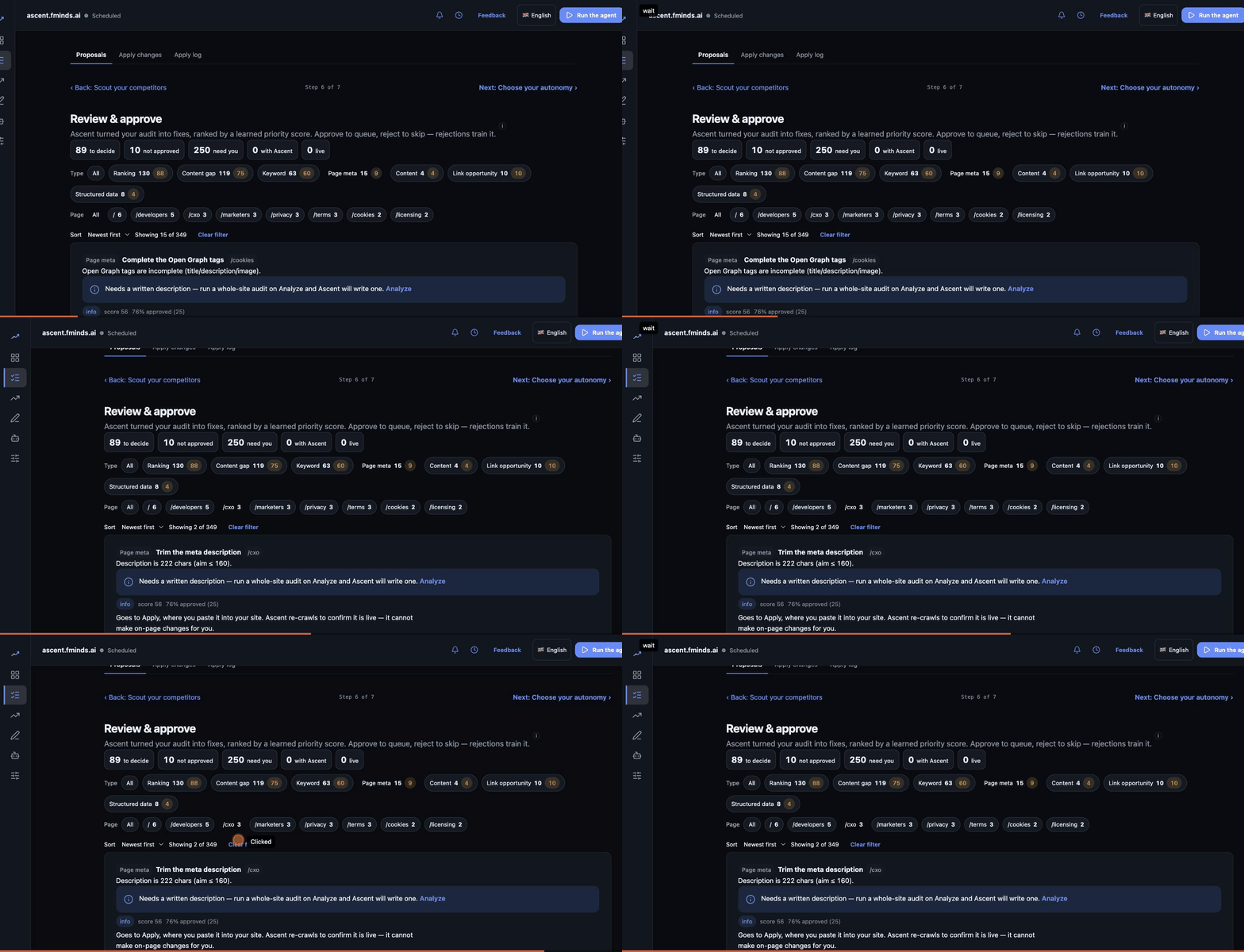
Reviewing and approving fixes
You review and approve fixes by narrowing the list until only the decision you want to make is left. Every count on the screen is a filter: press a type to see one kind of fix, press a page to see one part of the site, and the bulk actions act on exactly what is shown — never on everything behind it.
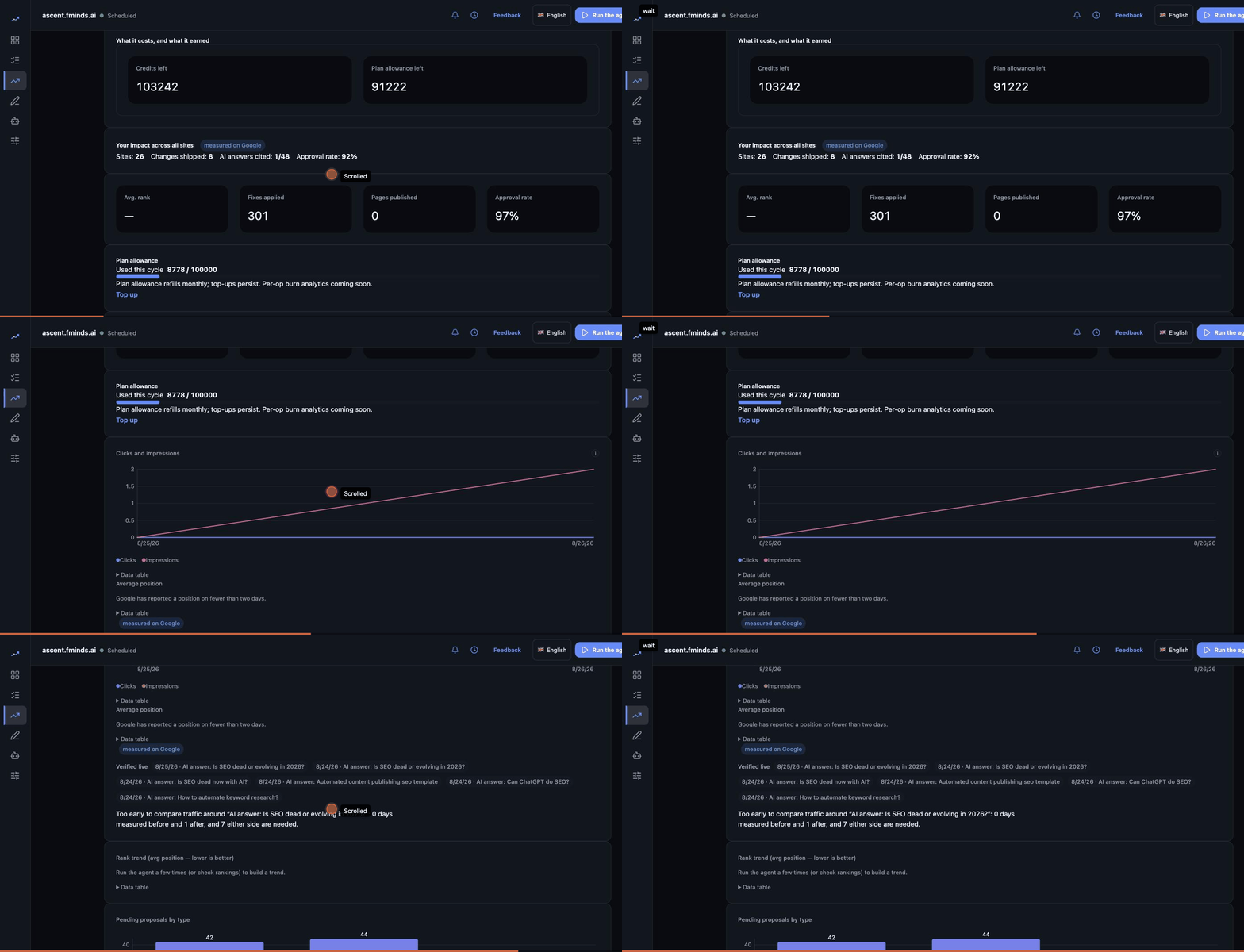
Proving a change worked
Umbodi shows whether a change worked by holding back about one fix in ten as a control group and comparing the two arms against traffic measured on Google. Until both sides have enough measured days it reports that it cannot say yet, rather than drawing a line — which is what this recording shows it doing.
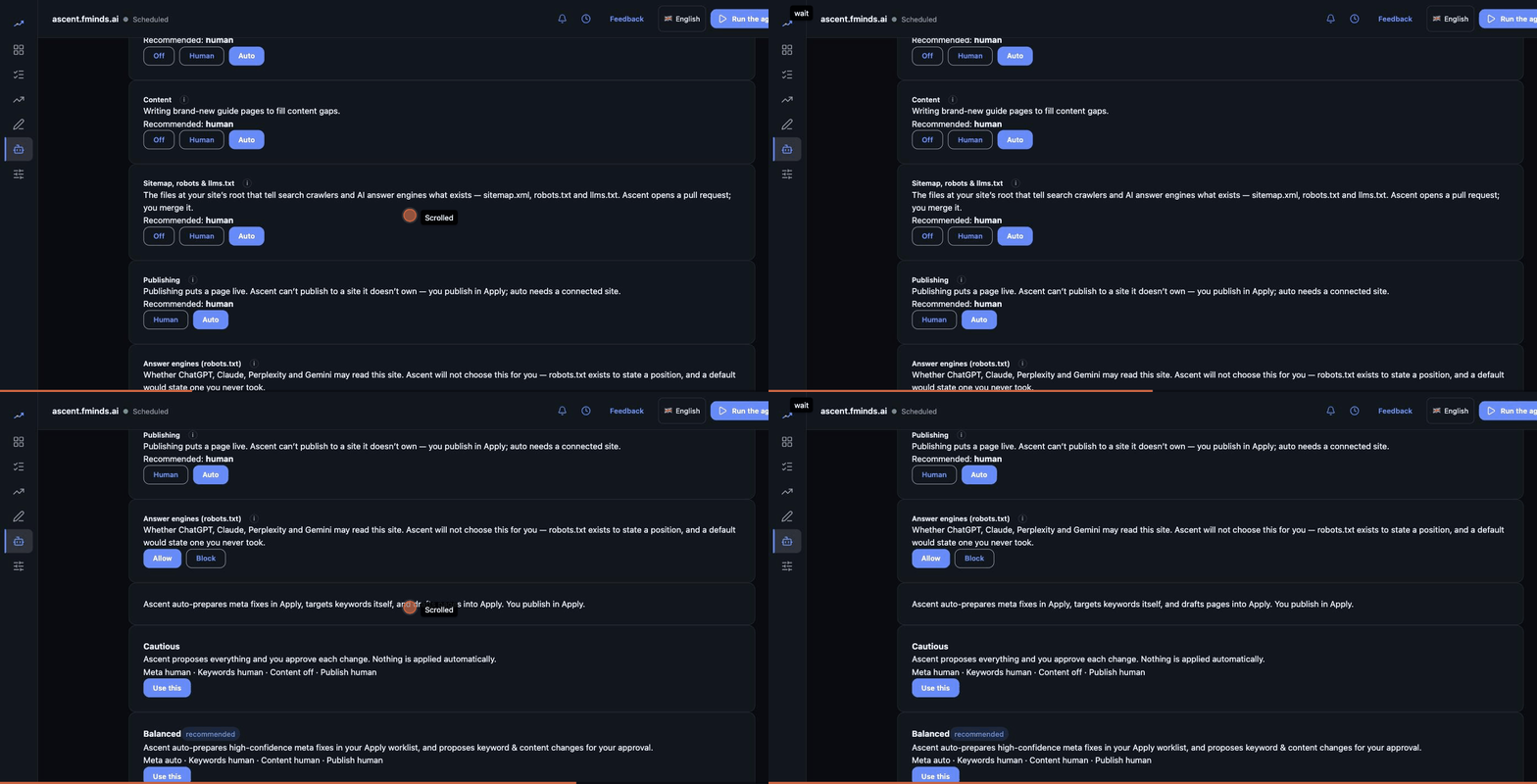
Choosing how much it may do alone
How much Umbodi may do on its own is set per task rather than by one switch: meta, keywords, content and sitemap files can each be off, human-approved or automatic, and publishing chooses only who presses the button. Your answer-engine policy sits beside them as its own allow-or-block decision. Publishing is the hard limit: Umbodi cannot publish to a site it does not own.
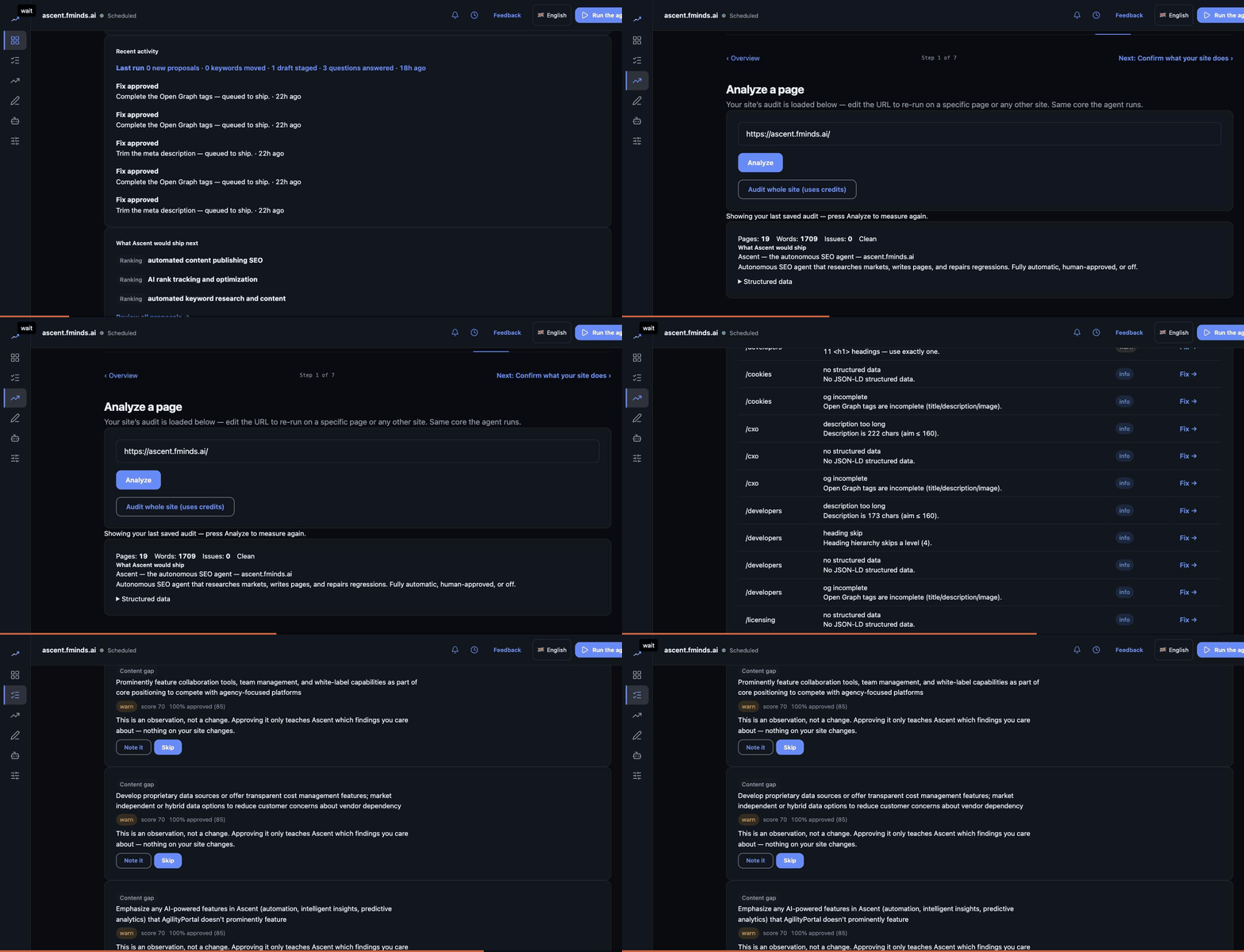
The rest of the loop
Finding the work, sizing up the competition, and reading rank as it moves.
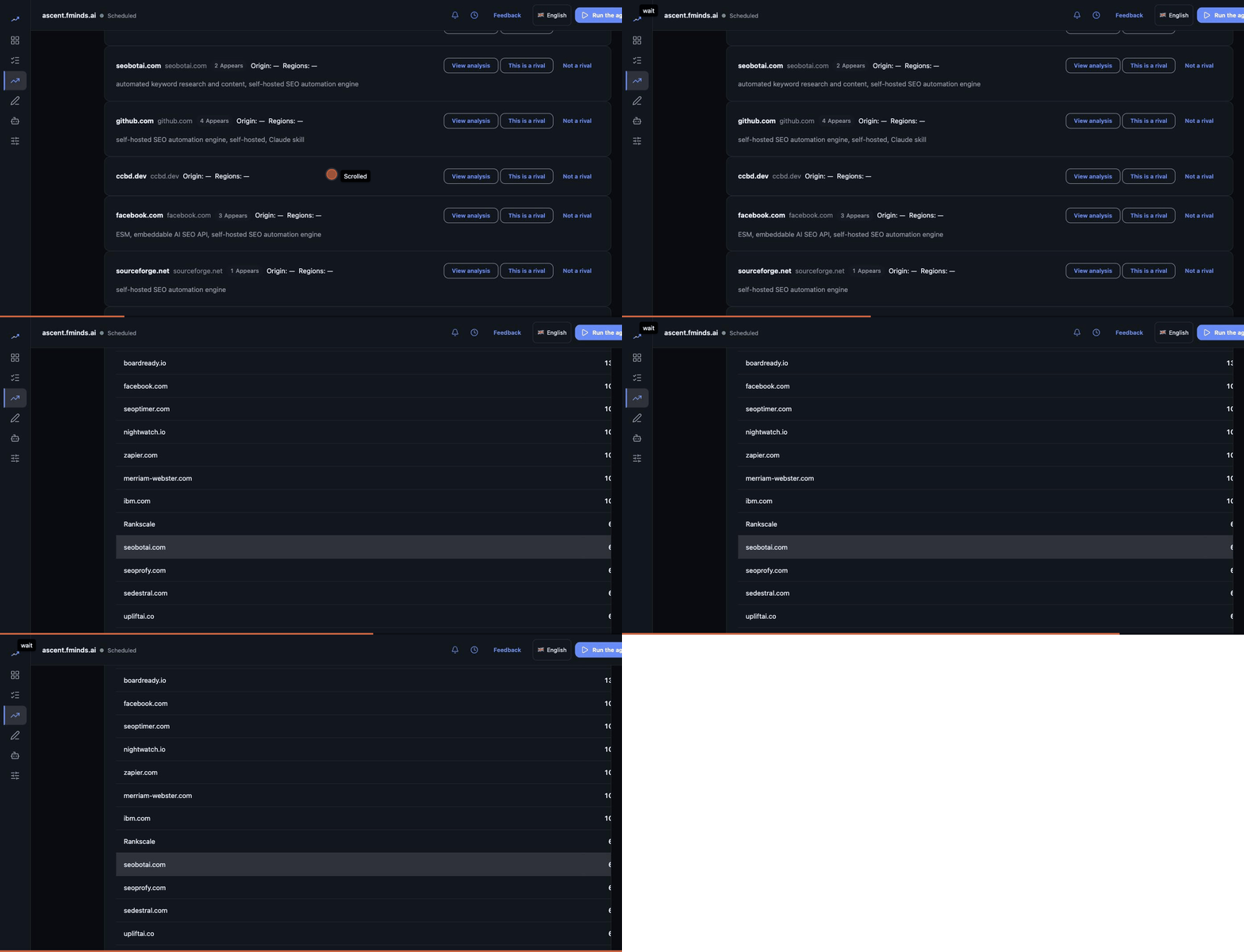
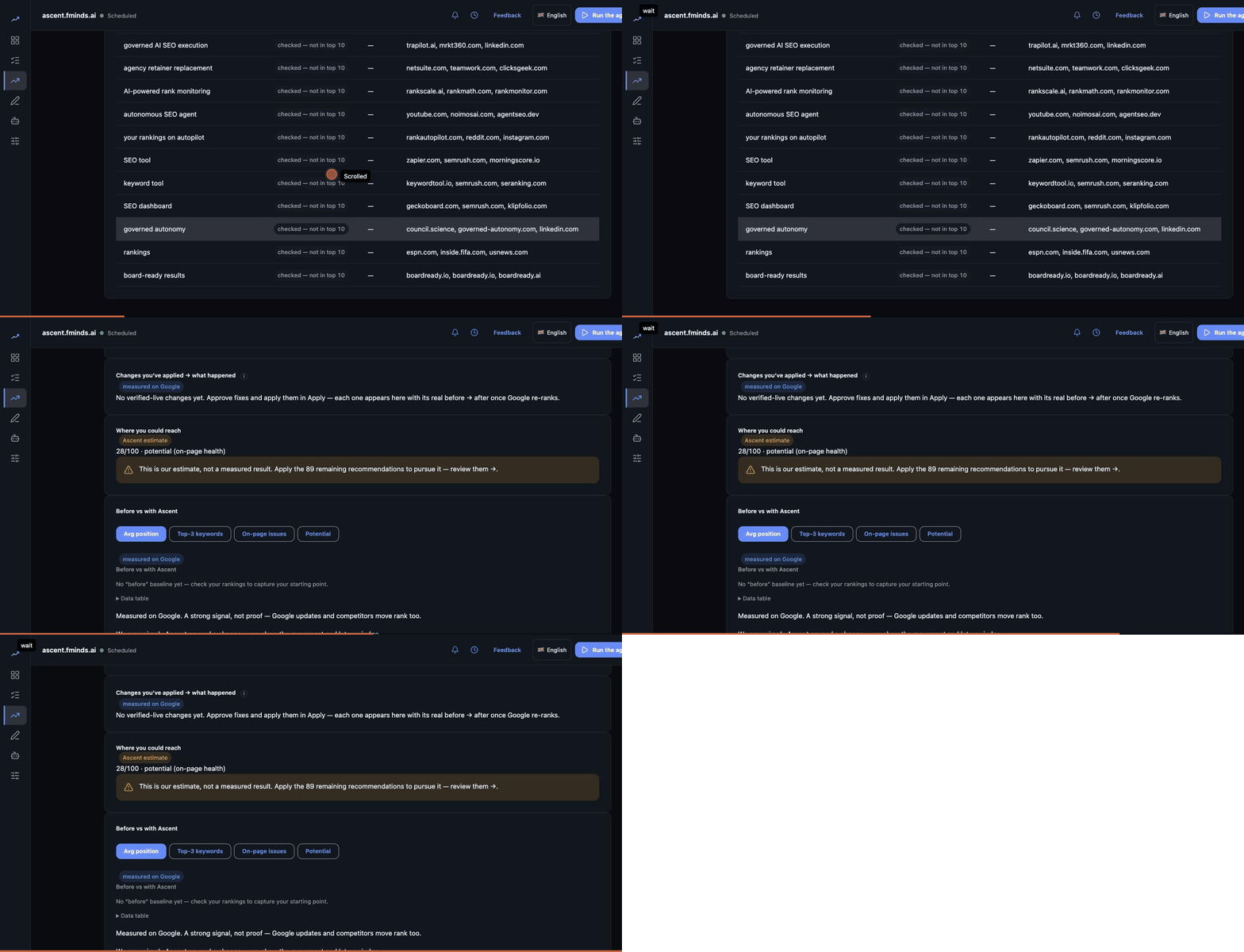
Recorded read-only. No paid operation was run and nothing was approved, published or changed to make these.